Xbox 360 Controller Not Working? Here's the Real Fix 2026
Picture this. It’s late, you’ve finally got a couple of hours free, and you sit down to finish a save file you left off two weeks ago. You hit the guide button. Nothing. You unplug the cable, plug it back in, Windows makes that little chime like it recognizes something, but the controller just sits dead in your hands.
I’ve had that exact moment more times than I’d like to admit. Here’s the good news: a dead-looking 360 controller is rarely actually dead. I’ve been pulling these apart and testing them for years, and most of the time the fix is something small and dumb. Let me walk you through it in the order I’d actually check things.
Start Here: Wired or Wireless?
Before anything else, answer one question: wired or wireless? That single detail rules out about half the possibilities, so sort it out before you start troubleshooting blind.
It Won't Power On at All
Wireless: check the batteries first
Nobody wants to hear this, but wireless 360 pads eat batteries faster than people expect, especially with rumble on. I’ve had people swear a controller was dead, hand it to me, and watch me fix it in about four seconds with fresh AAs. Slightly embarrassing for them. Happens constantly.
Wired: suspect the cable, not the controller
These cables get yanked, stepped on, and wound tight for storage. The strain relief where the cable meets the housing is where I’ve seen the internal wires fray first. Try a different USB cable before you assume anything about the controller itself.
It Powers On, but Games Don't Respond
This one trips people up because everything looks fine. Windows chimes, Device Manager shows the device, the LED might even light up. Then you press a button and nothing happens. Nine times out of ten, that’s a driver issue, not hardware.
The driver reinstall that actually works
Open Device Manager and look for a yellow warning icon next to the controller entry, or check whether it’s listed as “Unknown Device.” That usually means the driver failed to install properly or a Windows update knocked it loose. Uninstall the device entirely, unplug the controller, restart your PC, then plug it back in and let Windows reinstall the driver fresh. I know it sounds too simple. It fixes this problem more often than any other single step I’ve tried.
Wireless Controller Won't Sync
The 20-second window
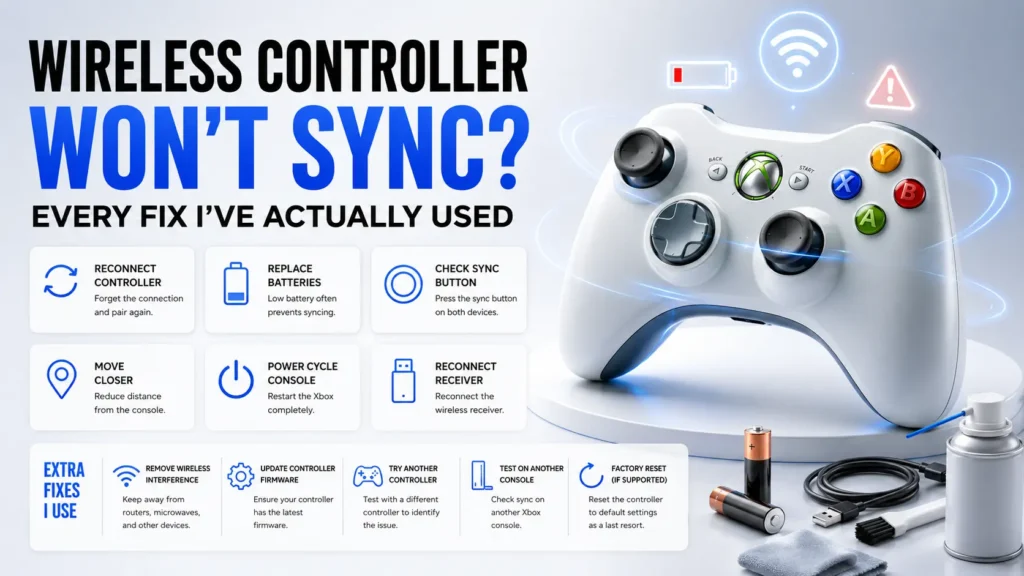
Hold the sync button on the controller until the ring lights start flashing in a rotating pattern, then hit the sync button on the receiver within about twenty seconds. Miss that window and you’re starting over. This trips up even people who’ve done it before.
Stand closer than you think
The receiver and controller need to be within a few feet during pairing. You get much more range once they’re paired, but during the sync itself, distance kills it. I once spent ten minutes trying to sync from across the room before I felt dumb enough to move closer and had it just work.
Try another USB port before buying a new receiver
In my experience the receiver itself is rarely the culprit. It’s almost always sync timing or a USB port conflict, so try a different port before spending money on new hardware.
Stick Drift or Dead Zones
If the controller powers on, syncs fine, and shows up in Windows, but your character drifts sideways when you’re not touching the stick, that’s usually worn contacts inside the stick housing. Age and heavy use do this, and it’s the one issue on this list that’s genuinely hardware rather than setup.
Light drift: recalibrate first
Recalibrate in Windows game controller settings. It’s free, takes thirty seconds, and sometimes that’s all it needs.
Heavy drift: the contacts are worn
Calibration won’t fully fix this. If it’s a wired controller you don’t mind opening, cleaning the contacts with isopropyl alcohol sometimes buys you another year. And before you declare it dead, test every input with our Gamepad Tester. You’ll see in real time whether each button and stick registers, which tells you fast whether you’re dealing with the controller or something else.
Where I'd Push Back on the Usual Advice
A lot of guides say “reinstall drivers” as step one for everything. I don’t agree. If your controller won’t power on at all, drivers are irrelevant. Diagnose in this order: power first, connection second, software third. Do it out of order and you’ll reinstall drivers five times for a dead battery.
The 60-Second Checklist
Run through this before you give up on the controller:
- Fresh batteries or a different USB cable. Rules out the most common cause in under a minute.
- Device Manager: yellow warning icon or an “Unknown Device” entry?
- Different USB port, ideally straight into the motherboard, not through a hub.
- Wireless: redo the sync with the receiver within a few feet, inside the time window.
- Sticks: check the Windows calibration screen to confirm drift is real and not a game setting.
If you’ve done all of that and it’s still dead, you’re probably looking at a genuine hardware fault. A cracked solder joint, a fried USB chip. At that point, unless you enjoy opening electronics, replacement is the more sensible move.
FAQ
Why does my Xbox 360 controller work on one PC but not another?
Usually a driver mismatch. Older PCs sometimes still carry the original driver, which behaves differently from what Windows pulls automatically now. Uninstall it on the problem PC and let Windows reinstall fresh.
Can a wireless Xbox 360 controller work on Windows 11?
Yes, with the official wireless receiver. Windows 11 handles it fine in my testing, no different from Windows 10 in practice, despite what a few outdated forum posts claim.
Why does my controller randomly disconnect mid-game?
Almost always wireless interference or USB power saving. Check the USB selective suspend setting in Windows power options and disable it for that port. It’s meant to save battery on laptops and it’s notorious for kicking wireless receivers offline.
Is it worth repairing an old Xbox 360 controller instead of replacing it?
Depends what’s wrong. Stick drift or a cable issue, absolutely, cheap and quick. A dead board inside the housing, not really worth your time unless you enjoy tinkering.
Do third-party Xbox 360 controllers have the same problems?
Mostly the same failure points, but the cheap ones fail faster at the stick contacts specifically. Testing controllers side by side, the third-party ones are usually the first to show drift.

Gaming Musk Team creates gaming tools and practical guides for gamers. We build tools like PC requirement checkers, gamepad testers, and game-specific calculators while publishing easy-to-follow guides for games, gaming hardware, and performance optimization. Our goal is to help players make better gaming decisions with accurate tools and reliable information.
PS4 Controller Not Connecting? Complete Fix Guide (2026)
Pairing, disconnects, dead ports, and drift from someone who’s resoldered these at the kitchen table
There’s a specific flavor of rage that only a DualShock 4 can produce. You press the PS button, the light bar flashes white a few times, and then… nothing. Just a dead blue strip staring back while the “press the PS button” prompt sits on your TV like it’s judging you. I’ve been elbow-deep in these pads for over a decade testing them, cracking them open, resoldering charging ports at midnight and that flashing-white-then-quit routine is probably the single most common thing people hand me.
Good news: it’s almost always fixable in a couple of minutes. And usually free.
The 60-second version
Flashes white then dies? Reset it (pinhole on the back, paperclip, 5 seconds), then plug in a real data cable and press PS.
Only works wired? That’s a Bluetooth or pairing problem, not a dead controller.
Won’t charge or keeps cutting out? Suspect the micro-USB port or a charge-only cable first.
Drifting sticks? Cleaning buys time. It is not a cure.
If your pad’s flashing white and won’t pair right now, jump straight to the reset section. That fixes it more often than not.
The PS4 Controller Issues You’ll Actually Run Into
Why troubleshoot instead of just buying a new pad? Because a genuine DualShock 4 still runs $45–65, and half the “broken” controllers people have handed me weren’t broken at all they were confused, using the wrong cable, or losing a fight with Bluetooth.
Most PS4 controller issues fall into a handful of buckets: it won’t pair, it keeps dropping out, it won’t charge, or the sticks wander. The pad is well-built, but it has two known weak spots the micro-USB port and stick drift. Knowing which of your problems is a two-minute fix versus a real hardware failure saves you money and a lot of swearing.
PS4 Controller Not Connecting? Start With This 60-Second Check
Not sure if it’s the pairing or the pad itself? Run it through our free gamepad tester first it’ll show you exactly which input is failing.
Before you do anything drastic, run through these three. Half the time they hand you the answer on the spot:
Plug the controller into the PS4 with a USB cable and press the PS button. Does it light up and work wired? If yes, your hardware’s fine this is a pairing problem.
Is that cable a real data cable, or a random charge-only cord from a phone drawer? This trips up more people than you’d believe.
Is the light bar flashing white, glowing a solid color, or doing nothing at all?
Those answers split the whole thing in two. A PS4 controller not connecting over Bluetooth but working perfectly on a cable is almost never dead it just lost its pairing. A pad that won’t even wake up wired is a different, rarer beast.
Let me correct a myth right here, because it changes everything you do next. People assume “not connecting” means the controller failed. In my experience, it’s the connection that failed, not the pad. Most of the time a PS4 controller not connecting is a broken handshake, not broken hardware.
The whole map, on one screen:
| Symptom | Most Likely Cause | First Move |
| Flashes white, won’t pair | Lost or corrupted pairing | Reset the controller and re-pair it using a USB cable. |
| Works wired, not wireless | Bluetooth range or USB 3.0 interference | Move the console, reduce 2.4GHz interference, or stay wired. |
| Won’t charge | Charge-only cable or worn micro-USB port | Use a new data cable first, then inspect the charging port. |
| Stick wanders on its own | Worn analog module (drift) | Clean the analog stick, but expect replacement if the drift persists. |
| Sticky or dead button | Gunk under the button | Clean around the button using 90%+ isopropyl alcohol and a cotton swab. |
| Feels laggy | Bluetooth latency or TV processing | Use a wired connection and enable Game Mode on your TV. |
The Reset That Fixes Most Connection Problems
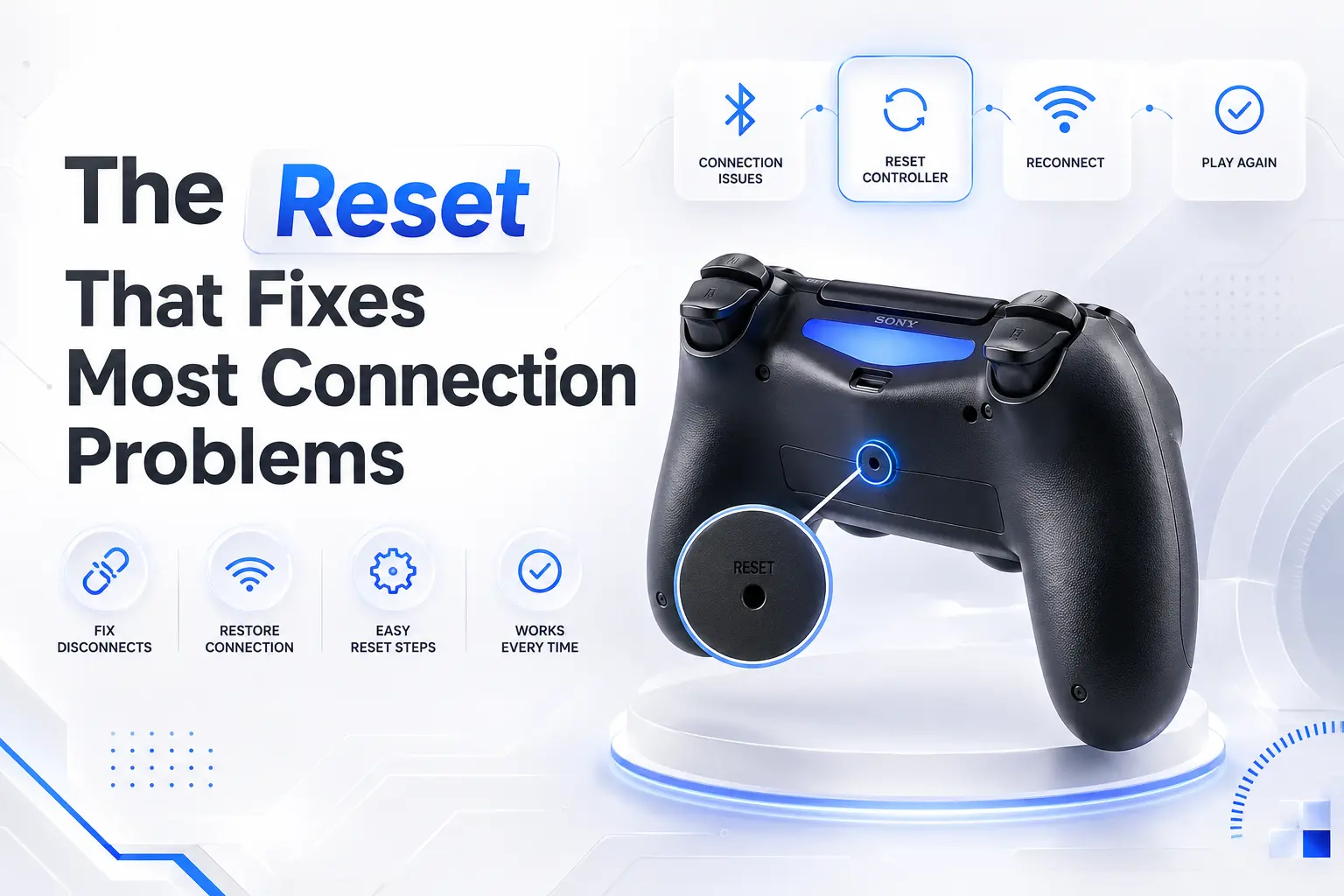
Flip the controller over. Up near the L2 trigger there’s a tiny pinhole genuinely tiny; I’ve watched people run a finger over it and miss it three times. Straighten a paperclip, poke the button inside, and hold for about five seconds. You won’t feel a dramatic click. Just hold and trust it.
Then here’s the step everyone botches: plug the controller into your PS4 with a USB cable and press the PS button. Wired. A reset only “sticks” once you re-pair over the cable. I’ve watched someone reset the pad, immediately jab at Bluetooth again, and declare it dead. It wasn’t. They just skipped the handshake.
Try this right now
Do it even if your controller mostly works. It clears the weird stuff a pad that logs in as player 2, sluggish menus, a light bar stuck on the wrong color. Takes half a minute. I treat it like power-cycling a router.
Why Your Controller Keeps Dropping Out Mid-Game
This is the one that used to make me want to launch a controller through a window. You’re fine for twenty minutes, then it drops. Reconnects. Drops again. Maddening.
The usual suspects, in the order I actually find them:
Distance and interference. The DualShock 4’s Bluetooth is weaker than people think — 15+ feet or a wall in the way and it struggles.
A tired battery. The v1 pads especially sag under load and cut out when the cell ages.
USB 3.0 interference. A sneaky one — 2.4GHz Bluetooth and USB 3.0 ports/hubs genuinely fight each other.
Corrupted pairing, which the reset above clears.
My old apartment kept the PS4 in a media cabinet behind a glass door, and it dropped constantly; moved it to an open shelf and the problem vanished. Quick test: play wired for an hour. If the drops disappear on a cable, you’re chasing Bluetooth, not a dead pad.
When It Won’t Charge the DualShock 4’s Achilles Heel
Here’s my honest, slightly unpopular take: the micro-USB port is the worst thing about this controller. It wears out. The tab inside loosens, the cable wiggles, and eventually it won’t charge unless you hold the cord at one perfect angle like you’re defusing a bomb
Before you assume the port’s dead, swap the cable. Charge-only and frayed micro-USB cords cause a shocking number of “won’t charge or pair” complaints — a proper data cable fixes maybe a third on the spot. If it’s genuinely the port wobbly, charging at only one angle that’s a hardware repair. Solderable if you’re handy (I’ve done dozens), but for most people a repair shop or replacement is the realistic call.
Stick Drift and Dead Buttons
Drift is the other classic failure. Your character wanders, the camera creeps, aim tugs to one side. Pop the rubber cap off, clean around the stick base with a little isopropyl, spray some contact cleaner in there, and it’ll often behave again for a while.
So does cleaning actually fix it? Not for good. The analog module wears out mechanically, and no amount of alcohol rebuilds it. If drift crawls back within weeks, the module needs replacing (about $8 and some soldering) or the pad’s near the end. Mushy or dead face buttons are usually just gunk soda, dust, whatever’s under the cap and the same isopropyl trick brings most of them back.
Where I’d Push Back on the Usual Advice
The internet loves to tell you every PS4 controller problem is a five-minute fix. It isn’t. A worn charging port and long-term stick drift are real hardware failures, and pretending a paperclip cures them just burns your weekend.
Here’s my line in the sand: if a controller has drift that returns within a month AND a flaky charging port, stop nursing it. At that point you’re pouring hours into a $50 part. Buy a new one, or if you love this exact pad, do both repairs at once and be done piecemeal fixes on an old DualShock are a trap.
And skip the cheap third-party pads as replacements. I’ve tested a pile the good ones are rare, the bad ones drift out of the box, and the latency on some is worse than Bluetooth on a real pad. A refurbished official DualShock beats a brand-new knockoff nearly every time.
Your Fix-It Flowchart
Work down this and stop at your first “yes”:
Flashing white, won’t pair? → Reset it, then re-pair wired.
Works wired but not wireless? → Reset, move the console into the open, kill USB 3.0 interference.
Won’t charge? → New data cable first; if still dead, suspect the port.
Stick wandering? → Clean it; if it returns, replace the module or the pad.
Feels laggy? → Go wired, turn on TV Game Mode.
The pre-panic checklist I run every time:
✓ Tried a known-good data cable, not a charge-only one?
✓ Reset the controller and re-paired over USB?
✓ Tested it wired to rule Bluetooth out?Use our controller button test to confirm every input registers cleanly.
✓ Moved the console away from other 2.4GHz gear and USB 3.0 hubs?
✓ Tried it on a second PS4 or a PC to isolate the fault?
Tick all five and it’s still broken? Then it’s the hardware, not you.
Questions I Actually Get Asked
It works on my PC but not my PS4 what’s wrong?
Almost always a pairing problem on the console side. Reset the pad, plug it into the PS4 with a data cable, press PS remember the PS4 pairs over USB the first time.
The light bar flashes white and never connects is it dead?
Usually not. That’s the classic “lost pairing” symptom, and a reset plus a wired re-pair clears the large majority of them.
Can I play while it charges?
Yes wired into the console with a data cable. That’s also the fastest way to tell a Bluetooth problem from a hardware one.
Why does it only disconnect when I’m on the couch?
Distance and line-of-sight. The DualShock 4’s range is modest an open console placement makes a real difference.
Is stick drift covered under warranty?
Within the window, Sony has handled drift claims worth a try before you crack it open. Out of warranty, you’re repairing or replacing.
Still have questions? Visit our Contact Us page, and we’ll be happy to help.
Gaming Musk Team creates gaming tools and practical guides for gamers. We build tools like PC requirement checkers, gamepad testers, and game-specific calculators while publishing easy-to-follow guides for games, gaming hardware, and performance optimization. Our goal is to help players make better gaming decisions with accurate tools and reliable information.
PS5 Controller Not Working? Every Fix I’ve Actually Used
Reset, disconnects, dead buttons, drift, and lag from someone who’s pulled a lot of these apart
The DualSense died on me three bars into a Malenia fight. Not a low-battery warning, not a slow fade just gone. Buttons stopped registering, the light bar blinked orange like it was mocking me, and Malenia did her little waterfowl dance while my character stood there like a mannequin. I’ve since fixed that exact problem more times than I can count, on my own controllers and half the ones friends have shoved across a coffee table at me.
So let me save you the rage. Almost every DualSense problem falls into a handful of buckets, and most of them are fixable in under ten minutes without spending a dime.
The 30-second version
Dead / unresponsive? Reset it. Tiny hole on the back, paperclip, hold 5 seconds, re-pair with a USB cable.
Keeps dropping out? Test wired first, then update firmware, then cut Bluetooth clutter.
Buttons or sticks off? Clean around them. If it’s drift, cleaning buys time — it rarely cures it.
Feels laggy? Go wired, kill background Bluetooth devices, and turn on your TV’s Game Mode.
If your controller is completely unresponsive right this second, skip to the reset section. That alone fixes it most of the time.
Here’s why this is worth ten minutes of your attention: a new DualSense runs about $75, and the Edge is a wallet-crushing $200. Sony doesn’t make replacing these cheap or fun, and stick drift the complaint everybody has has been common enough to spark lawsuits. So before you throw money at a new pad, it pays to know which causes of a PS5 controller not working you can actually fix at home and which mean the pad is cooked.
PS5 Controller Not Working? Start With a 30-Second Diagnosis
Not sure whether the problem is your controller or the console? Test every input with our free Gamepad tester to quickly identify faulty buttons or drifting sticks.
Before you touch anything, answer these three. It’ll stop you from randomly throwing fixes at a problem they don’t apply to:
1. Does the light bar do anything when you press the PS button? Nothing at all points to a power or reset issue; a blink-then-die points to pairing or battery.
2. Does it work over a USB cable but not wirelessly? That usually points to a Bluetooth issue rather than the controller itself. If your controller works over USB but won’t connect wirelessly, check out our PS5 controller not connecting guide for the most common causes and step-by-step fixes.
3. Is it one button or stick, or the whole thing? One means hardware. All of it means connection or firmware.
Hold those answers. If you searched “PS5 controller not working” at 1 a.m. mid-boss-fight, this little map is the fastest way to land on the right fix below
The whole troubleshooting map, on one screen:
| Symptom | Most Likely Cause | Try This First |
| Totally unresponsive | Confused firmware or pairing | Reset the controller and re-pair it using a USB cable. |
| Keeps dropping out | Old firmware or Bluetooth interference | Update the firmware, move closer to the console, or use a wired connection. |
| Stick moves on its own | Worn stick module (drift) | Clean the stick module, but expect that replacement may eventually be needed. |
| Sticky or dead button | Gunk or spill residue | Clean carefully with 90%+ isopropyl alcohol and a cotton swab. |
| Feels delayed / laggy | TV processing or Bluetooth latency | Enable TV Game Mode first, then switch to a wired connection if needed. |
| Won’t charge | Bad cable, charging port, or aged battery | Try another USB cable and charge from the console’s USB port. |
One correction before we go further, because people get this backwards constantly. A dead-seeming controller usually isn’t dead it’s confused. And the fix for a confused controller is almost embarrassingly simple.
The PS5 Controller Reset That Fixes Most Things
Flip the pad over. Near the Sony logo, down by the screw, there’s a tiny pinhole so easy to miss that I’ve had people swear their controller doesn’t have one when it’s right there. Grab an unfolded paperclip or a SIM-ejector tool, push the button inside, and hold it for about five seconds.
Then plug it into your PS5 with a USB-C cable and press the PS button. That last step is the one everybody skips a PS5 controller reset only “takes” once you re-pair it wired. I’ve watched people do the reset, yank the cable immediately, and wonder why nothing changed. Nine times out of ten, that sequence is the end of a PS5 controller not working problem.
Try this right now
Do the reset even if your controller mostly works. It clears a surprising amount of low-grade weirdness random light-bar colors, sluggish menus, a pad that keeps grabbing the wrong profile. Takes 30 seconds. I do it every couple of months, like clearing the cache on a phone.
PS5 Controller Keeps Disconnecting Chase These In Order
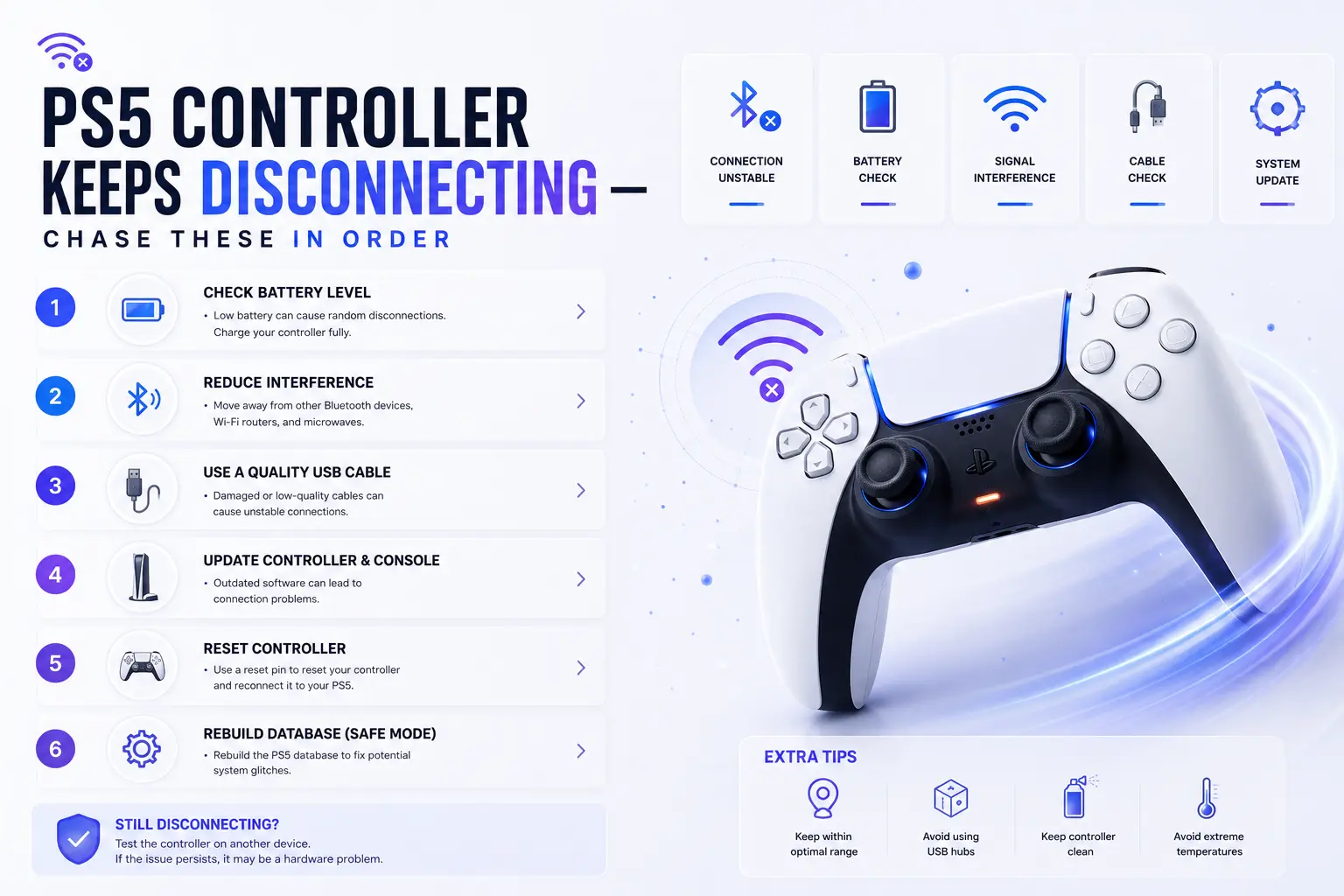
This one drove me up a wall for a solid week before the pattern clicked. If your PS5 controller keeps disconnecting, don’t assume it’s dead the culprit is almost always one of these, ranked by how often I actually see it:
• Old firmware. Update it. Settings › Accessories › Controller (General) › Device Software, done wired.
• Bluetooth interference. The pad uses 2.4GHz, same as your router and microwave. Walls and 10+ feet make drops worse.
• A tired battery. Older DualSense cells can’t hold up under load and cut out.
• A flaky cable or USB port, if you’re playing wired.
Quick test: play wired for an hour. No drops wired but drops wireless? It’s interference or firmware not the controller. Drops even when wired? Now I start worrying about the hardware itself.
PS5 Controller Buttons Not Working Two Very Different Problems
Searches for “PS5 controller buttons not working” usually cover two problems that get treated the same, which is exactly why people waste money on the wrong fix.
If a face button or trigger feels mushy, sticky, or dead, it’s usually gunk skin oil, crumbs, that one soda you don’t remember spilling. A little isopropyl alcohol, 90% or higher, on a cotton swab around the button edges works more often than it has any right to. Start there before you assume anything’s broken.
So does cleaning fix stick drift too? Not really. Drift is a different beast your character strolls off on its own, the camera pans without you, aim tugs to one side. You can blast compressed air in there, work the stick in circles, hit it with electrical-contact cleaner, and it might behave for a while. Be honest with yourself, though: that’s a bandaid. The little potentiometers inside wear down, and no amount of cleaning rebuilds them.
PS5 Controller Input Lag Is Usually Your TV’s Fault
Real talk: most of what people call PS5 controller input lag isn’t the controller at all. It’s the television.
Before you blame the DualSense, switch your TV to Game Mode. Motion smoothing, noise reduction, all those “cinema” processing modes stack real milliseconds between your thumb and the screen. I flipped exactly one setting on a friend’s fancy OLED once and the difference was night and day — he’d been cursing his controller for months.
If it really is the pad, go wired; Bluetooth adds latency, full stop. Then turn off other Bluetooth gadgets fighting for the same airspace, and make sure the firmware’s current. Every competitive player I know runs wired for this exact reason and never looks back.
Where I’d Push Back on the Internet’s Advice
Every forum will tell you drift is fixable. I’ll be the jerk who says: usually, it isn’t not permanently. Cleaning and contact cleaner buy you weeks, maybe a couple of months. If you’re past warranty and the drift keeps crawling back, you’ve really got two honest choices: replace the controller, or if you’re comfortable with a screwdriver and a soldering iron swap the stick module yourself. The parts are about $10. Everything in between is wishful thinking.
The Edge controller has swappable stick modules by design, and that’s the one genuine argument for its silly price. If you burn through pads because of drift, the math works out over a couple of years. Otherwise, skip it.
And one more unpopular opinion: stop buying no-name charging docks that force weird voltages into the battery. I’ve watched more than one DualSense die early because of a cheap dock. Charge off the console or a decent USB-C brick and move on.
Your Fix-It Flowchart
Work down this list and stop at the first “yes”:
• Totally dead or acting possessed? → Reset it (the paperclip method above).
• Works wired but not wireless? → Update firmware, then reduce Bluetooth clutter.
• One button or stick misbehaving? → Clean it. If it’s drift and it returns, replace or re-module.
• Everything feels delayed? → TV Game Mode on, go wired, cut background Bluetooth.
• Did all that and it’s still broken? → It’s hardware. Time to decide: repair or replace.
The pre-panic checklist I run every single time:
✓ Charged above 20%?
✓ Firmware up to date?
✓ Tested with a known-good USB-C cable?
✓ Tried it on a second PS5 or a PC to isolate the problem?
✓ Reset performed and re-paired wired?
Tick all five and it’s still misbehaving? You’re not doing anything wrong the hardware is.
Still not sure what’s wrong? Test your controller with our Gamepad Tester to identify faulty buttons, drifting sticks, or trigger issues before spending money on repairs.
Questions I Actually Get Asked
It works on PC but not my PS5 what gives?
Almost always a pairing or firmware issue on the console side, not a broken pad. Reset it, re-pair wired, update the firmware.
Can I play while it charges?
Yes, over a USB-C cable into the console and that’s also the easiest way to rule Bluetooth out of the picture entirely.
How long should a DualSense battery last?
Realistically 6–12 hours depending on how hard the haptics and light bar are working. If you’re getting two, the battery’s aging.
Is drift covered under warranty?
Within the window, Sony has repaired or replaced for drift file a claim before you try anything invasive. Past that, you’re on your own.
Will resetting delete my stuff?
No. Resetting the controller doesn’t touch your PS5 data or saves. It only clears the pad’s own connection state.
Still have questions? Visit our Contact Us page, and we’ll be happy to help.
Gaming Musk Team creates gaming tools and practical guides for gamers. We build tools like PC requirement checkers, gamepad testers, and game-specific calculators while publishing easy-to-follow guides for games, gaming hardware, and performance optimization. Our goal is to help players make better gaming decisions with accurate tools and reliable information.
Xbox Controller Drift Fix: 9 Proven Methods That Actually Work
The 9 Real Causes — and How I’d Actually Solve Each One
You know the moment. You set the controller down, hands completely off it, and your character starts strolling left like they’ve got somewhere to be. Or the menu highlight keeps creeping upward on its own. That slow, uninvited drift is the single most common way a good Xbox controller starts to die.
Here’s the part nobody tells you up front: “drift” isn’t one problem. It’s about nine different problems that all produce the same annoying symptom, which is exactly why no single Xbox Controller Drift Fix works for every case — the right one depends entirely on which cause you’ve actually got. Cleaning a stick that has a scratched sensor track is like mopping a floor with a hole in it. So before you pop anything open, let’s figure out what you’re really dealing with.
Quick answer (read this first)
Drift showed up suddenly, overnight? Update the controller firmware in the Xbox Accessories app. Free, three minutes, fixes a surprising chunk of sudden-onset cases.
Controller still under a year old? Stop. Don’t open it. Claim the warranty and let Microsoft send you a new one — your time is worth more than a $4 part.
Out of warranty and it’s a dust/gunk issue? Compressed air first, then electronic contact cleaner under the stick. Cheap and effective.
Cleaned it twice and it keeps coming back? The sensor’s worn out. Swap the joystick module (soldering) or — my honest pick — buy a Hall-effect controller and never deal with this again.
One thing to never do: WD-40. I mean it. Keep reading.
Why this keeps happening (the 30-second version)
The standard Xbox thumbstick is a potentiometer—a little wiper arm dragging across a carbon track and translating stick position into a voltage. It’s clever, it’s cheap, and it wears out. Those modules are rated for roughly two million cycles, which sounds enormous until you realize a few months of Call of Duty or Rocket League burns through them fast.
Two things kill sticks. Dust and skin oil work their way under the rubber boot and stop the stick from re-centering cleanly. And the carbon track itself gets physically scratched over time, so the controller reads a signal even when the stick is dead center. That’s it. That’s the whole villain origin story.
Fun-but-annoying fact: Xbox controllers use the same Alps-made joystick modules as PlayStation controllers. So this isn’t a Microsoft-specific curse. It’s an industry-wide design that’s been quietly failing gamers for over a decade. The upside: once you know which of those two failure modes you’re facing, the right Xbox Controller Drift Fix usually takes minutes, not an afternoon.
Try this before you read another word
Plug your controller into a PC and open the Xbox Accessories app (or pull up any browser gamepad tester and watch the on-screen stick dots). Now take your hands completely off it.
Watch where the dots sit. If a stick’s dot rests off-center or wanders on its own, congratulations — you’ve confirmed the drift and pinned down exactly which stick and which direction. While you’re in there, check your firmware version too. You’re about to need both of those facts.
The Xbox Controller Drift Fix for Each of the 9 Causes
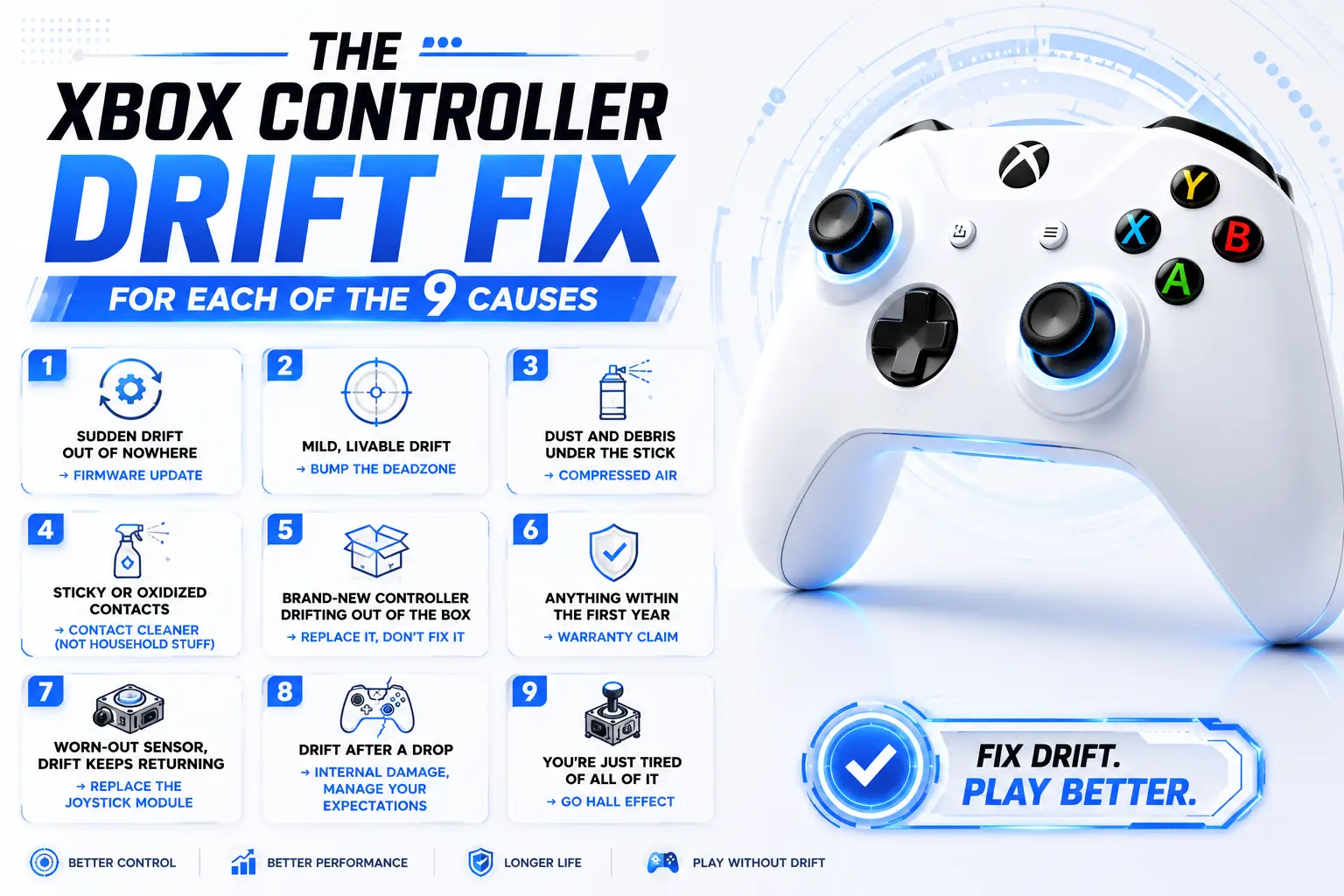
I’ve ordered these from “easiest, try it first” to “okay, we’re committing now.” Don’t skip ahead. Half the people who think they need a soldering iron actually needed a firmware update and a can of air.
1. Sudden drift out of nowhere → firmware update
If your controller was fine yesterday and drifting today, with no gradual buildup, there’s a real chance the cause is software, not worn hardware. Microsoft pushes firmware that adjusts how the controller interprets stick position, and a stale or glitchy calibration can masquerade as drift.
Open the Xbox Accessories app on your console or PC, connect via USB, and install any pending update. Three minutes. It won’t save a physically worn stick — but when drift appears abruptly, it’s the first thing I’d try.
2. Mild, livable drift → bump the deadzone
A deadzone is the little dead space around center where the controller ignores input. Widen it, and small drift gets swallowed before it reaches your game. In the Accessories app, go into the controller’s configuration and nudge the inner deadzone up until the phantom movement stops — usually a few percent does it.
Real talk: this is a band-aid, not a cure. A bigger deadzone means the stick travels further before the game responds, costing you a sliver of precision. Fine for casual play; in ranked, you’ll feel it. Use it to limp a controller to payday, nothing more.
3. Dust and debris under the stick → compressed air
This is the fix that saves the most controllers and takes the least effort. Grab a can of compressed air, aim the straw right at the base of the thumbstick where it meets the housing, and hit it with short bursts while working the stick around in full circles with your other hand. You’re blasting out the grit that’s keeping it from re-centering.
Keep the can upright — tip it and you’ll spray freezing liquid propellant onto the board, which is its own bad day. Cheap, fast, and it revives a shocking number of controllers people had already written off.
4. Sticky or oxidized contacts → contact cleaner (NOT household stuff)
Air didn’t fully do it? The gunk is stickier than dust — skin oil, soda residue, general life. Now you want a proper electronic contact cleaner (DeoxIT and BW-100 are the names to look for) or 99% isopropyl. A few drops at the base of the stick, work it in circles under the boot, then let it dry.
Here’s the mistake I see people make constantly, and it makes me wince every time: reaching for WD-40. Do not use WD-40. It’s not a cleaner, it’s a lubricant, and it leaves an oily film that attracts more dust and can wreck the electrical contact permanently. Household cleaners, same story. Contact cleaner or high-percentage isopropyl. Full stop.
5. Brand-new controller drifting out of the box → replace it, don't fix it
If a controller drifts within days of unboxing, that’s not wear — that’s a factory defect, a module that shipped miscalibrated. Do not clean it. Do not open it. Do not “fix” it.
Return it. If you bought from a retailer, their 30-day return is usually faster than Microsoft’s process, so start there. You paid for a working controller and didn’t get one — that’s the store’s problem, not yours.
6. Anything within the first year → warranty claim
This is the single most under-used Xbox Controller Drift Fix, and it’s completely free. Retail Xbox controllers in the US carry a one-year limited warranty, and Microsoft extended the Elite Series 2 to a full year after a class-action headache over — you guessed it — drift.
If your drift showed up inside that window and there’s no obvious drop damage, go to support.xbox.com, register the serial number, and request a replacement. Microsoft sends a prepaid shipping label and mails you a repaired or new unit, typically in one to three weeks. One catch worth bracing for: if your exact color’s out of stock, you might get a different one back.
So should you always solder your own fix to save money? Not even close. If you’re in warranty, opening the controller to save a $4 part is throwing away a free replacement. Claim it.
7. Worn-out sensor, drift keeps returning → replace the joystick module
Here’s the tell that cleaning will never hold: you clean the stick, it’s perfect for a week, then the exact same drift crawls back. That means the carbon track is scratched, not dirty. Cleaning removes dust; it can’t un-scratch a worn surface.
The permanent DIY fix is swapping the whole joystick module. The parts are dirt cheap — a few dollars — but installation means desoldering and resoldering roughly 14 points per module, so it’s an intermediate soldering job, not a beginner one. If you own an iron and you’re steady, it’s very doable. If you’ve never soldered, don’t learn on your only controller.
8. Drift after a drop → internal damage, manage your expectations
Dropped it on a hard floor and the drift started right after? Different animal. Impact can shift or crack internal parts, and no amount of cleaning or recalibration undoes bent metal. You can open it, look for anything obviously dislodged, and reseat or replace the module — but be honest about whether a standard controller is worth that effort versus just replacing it. Often it isn’t.
9. You're just tired of all of it → go Hall effect
If you’ve fixed drift on the same controller more than once, or you burn through controllers every year, stop patching a broken design. Hall-effect sticks use magnetic sensing instead of a physical wiper on a carbon track — nothing scrapes, so the wear-based drift you’ve been fighting simply can’t happen the same way.
Two paths. You can buy aftermarket Hall-effect modules that are pin-compatible with the Xbox board and solder them in, turning your existing controller drift-proof. Or — and this is what I’d tell most people — just buy a controller that ships with Hall-effect sticks. Officially licensed options like the GameSir G7 SE exist for around the price of a standard pad. It’s the closest thing to a real cure this whole category has.
Which fix is actually right for you?
Did the drift appear suddenly, overnight?
→ Firmware update first (issue 1). Then a deadzone bump (issue 2) if it lingers.
Is the controller less than a year old, no drop damage?
→ Warranty claim (issue 6). A free replacement beats your labor. Don’t overthink it.
Brand new, drifting immediately?
→ Return or replace it (issue 5). It’s defective; that’s not your job to repair.
Out of warranty, drift comes and goes?
→ Compressed air, then contact cleaner (issues 3–4). Give cleaning exactly one honest shot.
Cleaned it already and it came back?
→ The track’s worn. Module swap if you can solder (issue 7); Hall-effect controller if you can’t (issue 9).
Sick of doing this every single year?
→ Hall effect. Stop feeding the cycle (issue 9).
Is the controller less than a year old, no drop damage?
→ Warranty claim (issue 6). A free replacement beats your labor. Don’t overthink it.
Brand new, drifting immediately?
→ Return or replace it (issue 5). It’s defective; that’s not your job to repair.
Out of warranty, drift comes and goes?
→ Compressed air, then contact cleaner (issues 3–4). Give cleaning exactly one honest shot.
Cleaned it already and it came back?
→ The track’s worn. Module swap if you can solder (issue 7); Hall-effect controller if you can’t (issue 9).
Sick of doing this every single year?
→ Hall effect. Stop feeding the cycle (issue 9).
Fix-at-a-glance
| Fix | Cost | Difficulty | What it actually fixes | Permanent? |
|---|---|---|---|---|
| Firmware update | Free | Easy (3 min) | Sudden, software-side drift | Sometimes |
| Deadzone increase | Free | Easy | Masks mild drift | No — band-aid |
| Compressed air | ~$8 | Easy | Dust under the stick | Weeks–months |
| Contact cleaner / 99% IPA | ~$10 | Medium | Sticky, oxidized contacts | Months |
| Warranty replacement | Free | Easy* | Anything, in the first year | Yes (new unit) |
| Joystick module swap | ~$5 part | Hard (solder) | Worn / scratched sensor | Until it wears again |
| Hall-effect module | ~$20 | Hard (solder) | Everything — drift-proof | Yes |
| New Hall-effect controller | ~$40+ | None | Everything — drift-proof | Yes |
* Easy only if you’re inside the one-year window.
Where I'd push back on the usual advice
A few things the tutorials gloss over — because not every Xbox Controller Drift Fix you’ll read about online actually holds up.
“Just recalibrate it” is oversold. Xbox doesn’t hand you a full stick-recalibration wizard the way PlayStation does. What you’ve actually got is firmware updates and deadzone adjustment. Both help specific cases. Neither one regrows a worn carbon track, and it’s frustrating to watch people cycle through software settings for an hour on a stick that’s physically done.
Soldering your own module is real, but respect it. The part is cheap; the skill isn’t. Fourteen-ish points on a dense board, and one lifted pad or bridged connection turns a drifting controller into a dead one. Practice on something you don’t care about first. I’m not gatekeeping — I just don’t want you learning on your main pad.
The right-to-repair sticker thing. In the US, “warranty void if removed” stickers aren’t legally enforceable — opening the shell doesn’t automatically void your coverage. But that only matters out of warranty. If you’re still inside the window, the smart move isn’t to invoke your repair rights; it’s to make Microsoft ship you a new one for free.
Hall effect isn’t literally immortal. It kills the carbon-wear failure mode behind most drift, which is huge — but bumpers, triggers, and batteries still age. Buy it because it solves this problem, not because it’s a magic forever-pad.
A 60-second pre-flight checklist
Before you spend a dollar or pick up a tool, tick these off:
☐ I ran a gamepad test and confirmed which stick and which direction is drifting
☐ I checked whether the controller is still under its one-year warranty
☐ I updated the firmware in the Xbox Accessories app (free, first thing)
☐ I know whether the drift came on suddenly (lean software) or gradually (lean hardware)
☐ If it’s brand new, I’m returning it, not repairing it
☐ I have contact cleaner or 99% isopropyl on hand — and specifically not WD-40
☐ If I’m soldering, I’ve accepted the risk and I’m not learning on my only controller
FAQ
Does updating the firmware really fix drift, or is that a myth?
For sudden-onset drift, it genuinely helps a meaningful share of cases — the controller was mis-reading center, and the update corrects that. For drift that crept in gradually over months, firmware won’t save you; the problem is physical wear. But it’s free and takes three minutes, so always rule it out first.
Will bumping up the deadzone hurt my aim?
Yes, a little, and you should know that going in. A wider deadzone means the stick travels further before your game registers input, which slightly dulls precision and response. It’s a fair trade to keep a controller usable, but it’s a compromise, not a repair.
Can I just use the rubbing alcohol from my bathroom cabinet?
The 70% stuff will work in a pinch, but it’s mostly water and dries slower and dirtier. Spring for 99% isopropyl or a proper electronic contact cleaner — it flushes the contacts and evaporates clean, which is the entire point.
Is WD-40 ever okay, even a tiny bit?
No. Never. It’s a lubricant, not a cleaner; it leaves an oily residue that attracts dust and can permanently foul the contacts. If someone in a forum swears it fixed theirs, they’ve just delayed a worse failure.
My Elite Series 2 drifts — is it any different from a standard controller?
Same joystick modules, same failure mode, so the same fixes apply. The one difference in your favor: Microsoft extended Elite Series 2 warranty coverage to a full year after drift complaints, so check your purchase date before assuming you’re out of luck.
How long should an Xbox controller realistically last?
For heavy players, plan for drift somewhere in the one-to-two-year range on standard sticks — that’s just the nature of the potentiometer design. Lighter use stretches it out. If that lifespan annoys you as much as it annoys me, that’s the argument for Hall effect in a nutshell.
Are Hall-effect sticks actually drift-proof forever?
They’re immune to the carbon-track wear that causes the common drift you’re fighting, because nothing physically scrapes. That’s the big win. They’re not indestructible overall — but the specific problem that brought you to this article? Gone.
Yes, a little, and you should know that going in. A wider deadzone means the stick travels further before your game registers input, which slightly dulls precision and response. It’s a fair trade to keep a controller usable, but it’s a compromise, not a repair.
The 70% stuff will work in a pinch, but it’s mostly water and dries slower and dirtier. Spring for 99% isopropyl or a proper electronic contact cleaner it flushes the contacts and evaporates cleanly , which is the entire point.
No. Never. It’s a lubricant, not a cleaner; it leaves an oily residue that attracts dust and can permanently foul the contacts. If someone in a forum swears it fixed theirs, they’ve just delayed a worse failure.
Same joystick modules, same failure mode, so the same fixes apply. The one difference in your favor: Microsoft extended Elite Series 2 warranty coverage to a full year after drift complaints, so check your purchase date before assuming you’re out of luck.
They’re immune to the carbon-track wear that causes the common drift you’re fighting, because nothing physically scrapes. That’s the big win. They’re not indestructible overall but the specific problem that brought you to this article? Gone.
What I'd actually do
If I handed this to a friend, the whole decision fits in a breath: In warranty? Claim it. New out of the box? Return it. Out of warranty with a dust problem? One round of air and contact cleaner, and if the drift crawls back within a week or two, quit cleaning — the sensor’s scratched and you’re just delaying the inevitable.
And if you’ve been through this dance more than once on the same pad, I’d stop being stubborn about it. The only permanent Xbox Controller Drift Fix worth betting on long-term is Hall effect — swap in the modules yourself if you like soldering, or spend forty-ish bucks on a controller that ships with them and be done. There’s a point where fixing the same drift over and over isn’t thriftiness — it’s choosing to keep the problem. Don’t. Go play something.
Gaming Musk Team creates gaming tools and practical guides for gamers. We build tools like PC requirement checkers, gamepad testers, and game-specific calculators while publishing easy-to-follow guides for games, gaming hardware, and performance optimization. Our goal is to help players make better gaming decisions with accurate tools and reliable information.