Last updated: October 4, 2026
Xbox 360 Controller Not Working? Here's the Real Fix 2026
Table of Contents
TogglePicture this. It’s late, you’ve finally got a couple of hours free, and you sit down to finish a save file you left off two weeks ago. You hit the guide button. Nothing. You unplug the cable, plug it back in, Windows makes that little chime like it recognizes something, but the controller just sits dead in your hands.
I’ve had that exact moment more times than I’d like to admit. Here’s the good news: a dead-looking 360 controller is rarely actually dead. I’ve been pulling these apart and testing them for years, and most of the time the fix is something small and dumb. Let me walk you through it in the order I’d actually check things.
Start Here: Wired or Wireless?
Before anything else, answer one question: wired or wireless? That single detail rules out about half the possibilities, so sort it out before you start troubleshooting blind.
It Won't Power On at All
Wireless: check the batteries first
Nobody wants to hear this, but wireless 360 pads eat batteries faster than people expect, especially with rumble on. I’ve had people swear a controller was dead, hand it to me, and watch me fix it in about four seconds with fresh AAs. Slightly embarrassing for them. Happens constantly.
Wired: suspect the cable, not the controller
These cables get yanked, stepped on, and wound tight for storage. The strain relief where the cable meets the housing is where I’ve seen the internal wires fray first. Try a different USB cable before you assume anything about the controller itself.
It Powers On, but Games Don't Respond
This one trips people up because everything looks fine. Windows chimes, Device Manager shows the device, the LED might even light up. Then you press a button and nothing happens. Nine times out of ten, that’s a driver issue, not hardware.
The driver reinstall that actually works
Open Device Manager and look for a yellow warning icon next to the controller entry, or check whether it’s listed as “Unknown Device.” That usually means the driver failed to install properly or a Windows update knocked it loose. Uninstall the device entirely, unplug the controller, restart your PC, then plug it back in and let Windows reinstall the driver fresh. I know it sounds too simple. It fixes this problem more often than any other single step I’ve tried.
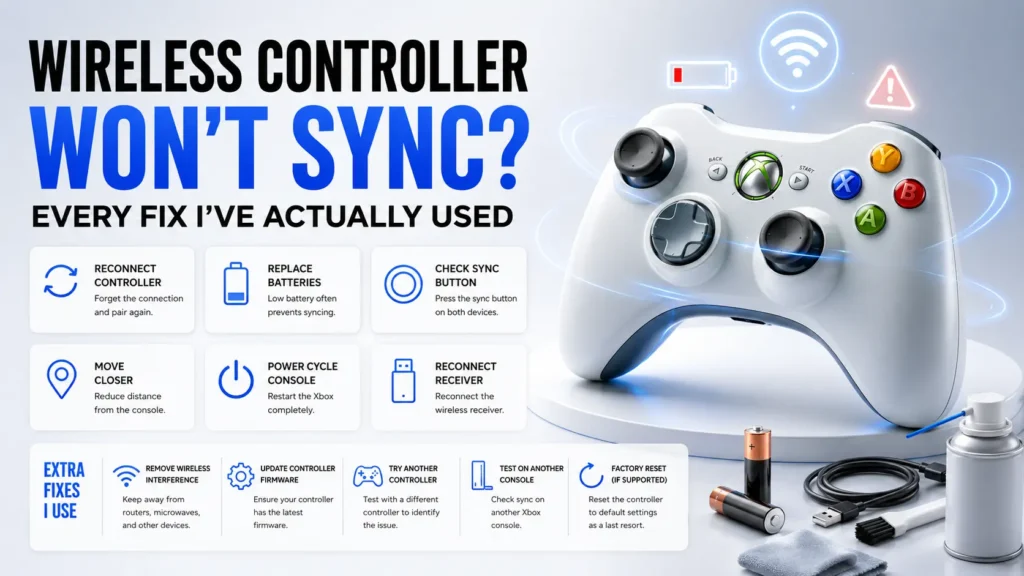
Wireless Controller Won't Sync
The 20-second window
Hold the sync button on the controller until the ring lights start flashing in a rotating pattern, then hit the sync button on the receiver within about twenty seconds. Miss that window and you’re starting over. This trips up even people who’ve done it before.
Stand closer than you think
The receiver and controller need to be within a few feet during pairing. You get much more range once they’re paired, but during the sync itself, distance kills it. I once spent ten minutes trying to sync from across the room before I felt dumb enough to move closer and had it just work.
Try another USB port before buying a new receiver
In my experience the receiver itself is rarely the culprit. It’s almost always sync timing or a USB port conflict, so try a different port before spending money on new hardware.
Stick Drift or Dead Zones
If the controller powers on, syncs fine, and shows up in Windows, but your character drifts sideways when you’re not touching the stick, that’s usually worn contacts inside the stick housing. Age and heavy use do this, and it’s the one issue on this list that’s genuinely hardware rather than setup.
Light drift: recalibrate first
Recalibrate in Windows game controller settings. It’s free, takes thirty seconds, and sometimes that’s all it needs.
Heavy drift: the contacts are worn
Calibration won’t fully fix this. If it’s a wired controller you don’t mind opening, cleaning the contacts with isopropyl alcohol sometimes buys you another year. And before you declare it dead, test every input with our Gamepad Tester. You’ll see in real time whether each button and stick registers, which tells you fast whether you’re dealing with the controller or something else.
Where I'd Push Back on the Usual Advice
A lot of guides say “reinstall drivers” as step one for everything. I don’t agree. If your controller won’t power on at all, drivers are irrelevant. Diagnose in this order: power first, connection second, software third. Do it out of order and you’ll reinstall drivers five times for a dead battery.
The 60-Second Checklist
Run through this before you give up on the controller:
- Fresh batteries or a different USB cable. Rules out the most common cause in under a minute.
- Device Manager: yellow warning icon or an “Unknown Device” entry?
- Different USB port, ideally straight into the motherboard, not through a hub.
- Wireless: redo the sync with the receiver within a few feet, inside the time window.
- Sticks: check the Windows calibration screen to confirm drift is real and not a game setting.
If you’ve done all of that and it’s still dead, you’re probably looking at a genuine hardware fault. A cracked solder joint, a fried USB chip. At that point, unless you enjoy opening electronics, replacement is the more sensible move.
FAQ
Why does my Xbox 360 controller work on one PC but not another?
Usually a driver mismatch. Older PCs sometimes still carry the original driver, which behaves differently from what Windows pulls automatically now. Uninstall it on the problem PC and let Windows reinstall fresh.
Can a wireless Xbox 360 controller work on Windows 11?
Yes, with the official wireless receiver. Windows 11 handles it fine in my testing, no different from Windows 10 in practice, despite what a few outdated forum posts claim.
Why does my controller randomly disconnect mid-game?
Almost always wireless interference or USB power saving. Check the USB selective suspend setting in Windows power options and disable it for that port. It’s meant to save battery on laptops and it’s notorious for kicking wireless receivers offline.
Is it worth repairing an old Xbox 360 controller instead of replacing it?
Depends what’s wrong. Stick drift or a cable issue, absolutely, cheap and quick. A dead board inside the housing, not really worth your time unless you enjoy tinkering.
Do third-party Xbox 360 controllers have the same problems?
Mostly the same failure points, but the cheap ones fail faster at the stick contacts specifically. Testing controllers side by side, the third-party ones are usually the first to show drift.

Gaming Musk Team creates gaming tools and practical guides for gamers. We build tools like PC requirement checkers, gamepad testers, and game-specific calculators while publishing easy-to-follow guides for games, gaming hardware, and performance optimization. Our goal is to help players make better gaming decisions with accurate tools and reliable information.