Last updated: October 1, 2026
PS5 Controller Not Working? Every Fix I’ve Actually Used
Table of Contents
ToggleReset, disconnects, dead buttons, drift, and lag from someone who’s pulled a lot of these apart
The DualSense died on me three bars into a Malenia fight. Not a low-battery warning, not a slow fade just gone. Buttons stopped registering, the light bar blinked orange like it was mocking me, and Malenia did her little waterfowl dance while my character stood there like a mannequin. I’ve since fixed that exact problem more times than I can count, on my own controllers and half the ones friends have shoved across a coffee table at me.
So let me save you the rage. Almost every DualSense problem falls into a handful of buckets, and most of them are fixable in under ten minutes without spending a dime.
The 30-second version
Dead / unresponsive? Reset it. Tiny hole on the back, paperclip, hold 5 seconds, re-pair with a USB cable.
Keeps dropping out? Test wired first, then update firmware, then cut Bluetooth clutter.
Buttons or sticks off? Clean around them. If it’s drift, cleaning buys time — it rarely cures it.
Feels laggy? Go wired, kill background Bluetooth devices, and turn on your TV’s Game Mode.
If your controller is completely unresponsive right this second, skip to the reset section. That alone fixes it most of the time.
Here’s why this is worth ten minutes of your attention: a new DualSense runs about $75, and the Edge is a wallet-crushing $200. Sony doesn’t make replacing these cheap or fun, and stick drift the complaint everybody has has been common enough to spark lawsuits. So before you throw money at a new pad, it pays to know which causes of a PS5 controller not working you can actually fix at home and which mean the pad is cooked.
PS5 Controller Not Working? Start With a 30-Second Diagnosis
Not sure whether the problem is your controller or the console? Test every input with our free Gamepad tester to quickly identify faulty buttons or drifting sticks.
Before you touch anything, answer these three. It’ll stop you from randomly throwing fixes at a problem they don’t apply to:
1. Does the light bar do anything when you press the PS button? Nothing at all points to a power or reset issue; a blink-then-die points to pairing or battery.
2. Does it work over a USB cable but not wirelessly? That usually points to a Bluetooth issue rather than the controller itself. If your controller works over USB but won’t connect wirelessly, check out our PS5 controller not connecting guide for the most common causes and step-by-step fixes.
3. Is it one button or stick, or the whole thing? One means hardware. All of it means connection or firmware.
Hold those answers. If you searched “PS5 controller not working” at 1 a.m. mid-boss-fight, this little map is the fastest way to land on the right fix below
The whole troubleshooting map, on one screen:
| Symptom | Most Likely Cause | Try This First |
| Totally unresponsive | Confused firmware or pairing | Reset the controller and re-pair it using a USB cable. |
| Keeps dropping out | Old firmware or Bluetooth interference | Update the firmware, move closer to the console, or use a wired connection. |
| Stick moves on its own | Worn stick module (drift) | Clean the stick module, but expect that replacement may eventually be needed. |
| Sticky or dead button | Gunk or spill residue | Clean carefully with 90%+ isopropyl alcohol and a cotton swab. |
| Feels delayed / laggy | TV processing or Bluetooth latency | Enable TV Game Mode first, then switch to a wired connection if needed. |
| Won’t charge | Bad cable, charging port, or aged battery | Try another USB cable and charge from the console’s USB port. |
One correction before we go further, because people get this backwards constantly. A dead-seeming controller usually isn’t dead it’s confused. And the fix for a confused controller is almost embarrassingly simple.
The PS5 Controller Reset That Fixes Most Things
Flip the pad over. Near the Sony logo, down by the screw, there’s a tiny pinhole so easy to miss that I’ve had people swear their controller doesn’t have one when it’s right there. Grab an unfolded paperclip or a SIM-ejector tool, push the button inside, and hold it for about five seconds.
Then plug it into your PS5 with a USB-C cable and press the PS button. That last step is the one everybody skips a PS5 controller reset only “takes” once you re-pair it wired. I’ve watched people do the reset, yank the cable immediately, and wonder why nothing changed. Nine times out of ten, that sequence is the end of a PS5 controller not working problem.
Try this right now
Do the reset even if your controller mostly works. It clears a surprising amount of low-grade weirdness random light-bar colors, sluggish menus, a pad that keeps grabbing the wrong profile. Takes 30 seconds. I do it every couple of months, like clearing the cache on a phone.
PS5 Controller Keeps Disconnecting Chase These In Order
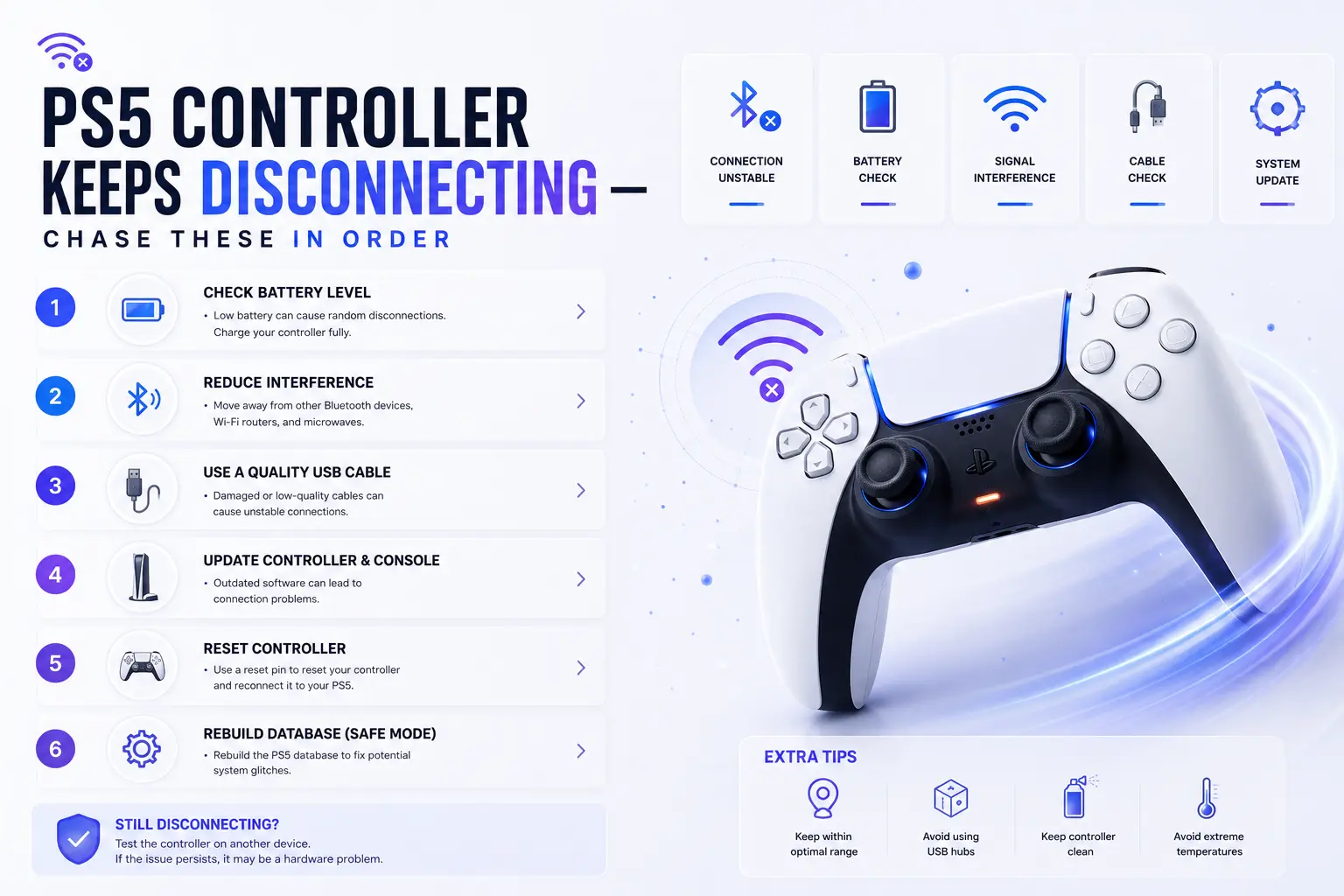
This one drove me up a wall for a solid week before the pattern clicked. If your PS5 controller keeps disconnecting, don’t assume it’s dead the culprit is almost always one of these, ranked by how often I actually see it:
• Old firmware. Update it. Settings › Accessories › Controller (General) › Device Software, done wired.
• Bluetooth interference. The pad uses 2.4GHz, same as your router and microwave. Walls and 10+ feet make drops worse.
• A tired battery. Older DualSense cells can’t hold up under load and cut out.
• A flaky cable or USB port, if you’re playing wired.
Quick test: play wired for an hour. No drops wired but drops wireless? It’s interference or firmware not the controller. Drops even when wired? Now I start worrying about the hardware itself.
PS5 Controller Buttons Not Working Two Very Different Problems
Searches for “PS5 controller buttons not working” usually cover two problems that get treated the same, which is exactly why people waste money on the wrong fix.
If a face button or trigger feels mushy, sticky, or dead, it’s usually gunk skin oil, crumbs, that one soda you don’t remember spilling. A little isopropyl alcohol, 90% or higher, on a cotton swab around the button edges works more often than it has any right to. Start there before you assume anything’s broken.
So does cleaning fix stick drift too? Not really. Drift is a different beast your character strolls off on its own, the camera pans without you, aim tugs to one side. You can blast compressed air in there, work the stick in circles, hit it with electrical-contact cleaner, and it might behave for a while. Be honest with yourself, though: that’s a bandaid. The little potentiometers inside wear down, and no amount of cleaning rebuilds them.
PS5 Controller Input Lag Is Usually Your TV’s Fault
Real talk: most of what people call PS5 controller input lag isn’t the controller at all. It’s the television.
Before you blame the DualSense, switch your TV to Game Mode. Motion smoothing, noise reduction, all those “cinema” processing modes stack real milliseconds between your thumb and the screen. I flipped exactly one setting on a friend’s fancy OLED once and the difference was night and day — he’d been cursing his controller for months.
If it really is the pad, go wired; Bluetooth adds latency, full stop. Then turn off other Bluetooth gadgets fighting for the same airspace, and make sure the firmware’s current. Every competitive player I know runs wired for this exact reason and never looks back.
Where I’d Push Back on the Internet’s Advice
Every forum will tell you drift is fixable. I’ll be the jerk who says: usually, it isn’t not permanently. Cleaning and contact cleaner buy you weeks, maybe a couple of months. If you’re past warranty and the drift keeps crawling back, you’ve really got two honest choices: replace the controller, or if you’re comfortable with a screwdriver and a soldering iron swap the stick module yourself. The parts are about $10. Everything in between is wishful thinking.
The Edge controller has swappable stick modules by design, and that’s the one genuine argument for its silly price. If you burn through pads because of drift, the math works out over a couple of years. Otherwise, skip it.
And one more unpopular opinion: stop buying no-name charging docks that force weird voltages into the battery. I’ve watched more than one DualSense die early because of a cheap dock. Charge off the console or a decent USB-C brick and move on.
Your Fix-It Flowchart
Work down this list and stop at the first “yes”:
• Totally dead or acting possessed? → Reset it (the paperclip method above).
• Works wired but not wireless? → Update firmware, then reduce Bluetooth clutter.
• One button or stick misbehaving? → Clean it. If it’s drift and it returns, replace or re-module.
• Everything feels delayed? → TV Game Mode on, go wired, cut background Bluetooth.
• Did all that and it’s still broken? → It’s hardware. Time to decide: repair or replace.
The pre-panic checklist I run every single time:
✓ Charged above 20%?
✓ Firmware up to date?
✓ Tested with a known-good USB-C cable?
✓ Tried it on a second PS5 or a PC to isolate the problem?
✓ Reset performed and re-paired wired?
Tick all five and it’s still misbehaving? You’re not doing anything wrong the hardware is.
Still not sure what’s wrong? Test your controller with our Gamepad Tester to identify faulty buttons, drifting sticks, or trigger issues before spending money on repairs.
Questions I Actually Get Asked
It works on PC but not my PS5 what gives?
Almost always a pairing or firmware issue on the console side, not a broken pad. Reset it, re-pair wired, update the firmware.
Can I play while it charges?
Yes, over a USB-C cable into the console and that’s also the easiest way to rule Bluetooth out of the picture entirely.
How long should a DualSense battery last?
Realistically 6–12 hours depending on how hard the haptics and light bar are working. If you’re getting two, the battery’s aging.
Is drift covered under warranty?
Within the window, Sony has repaired or replaced for drift file a claim before you try anything invasive. Past that, you’re on your own.
Will resetting delete my stuff?
No. Resetting the controller doesn’t touch your PS5 data or saves. It only clears the pad’s own connection state.
Still have questions? Visit our Contact Us page, and we’ll be happy to help.
Gaming Musk Team creates gaming tools and practical guides for gamers. We build tools like PC requirement checkers, gamepad testers, and game-specific calculators while publishing easy-to-follow guides for games, gaming hardware, and performance optimization. Our goal is to help players make better gaming decisions with accurate tools and reliable information.