PS4 Controller Not Connecting? Complete Fix Guide (2026)
Pairing, disconnects, dead ports, and drift from someone who’s resoldered these at the kitchen table
There’s a specific flavor of rage that only a DualShock 4 can produce. You press the PS button, the light bar flashes white a few times, and then… nothing. Just a dead blue strip staring back while the “press the PS button” prompt sits on your TV like it’s judging you. I’ve been elbow-deep in these pads for over a decade testing them, cracking them open, resoldering charging ports at midnight and that flashing-white-then-quit routine is probably the single most common thing people hand me.
Good news: it’s almost always fixable in a couple of minutes. And usually free.
The 60-second version
Flashes white then dies? Reset it (pinhole on the back, paperclip, 5 seconds), then plug in a real data cable and press PS.
Only works wired? That’s a Bluetooth or pairing problem, not a dead controller.
Won’t charge or keeps cutting out? Suspect the micro-USB port or a charge-only cable first.
Drifting sticks? Cleaning buys time. It is not a cure.
If your pad’s flashing white and won’t pair right now, jump straight to the reset section. That fixes it more often than not.
The PS4 Controller Issues You’ll Actually Run Into
Why troubleshoot instead of just buying a new pad? Because a genuine DualShock 4 still runs $45–65, and half the “broken” controllers people have handed me weren’t broken at all they were confused, using the wrong cable, or losing a fight with Bluetooth.
Most PS4 controller issues fall into a handful of buckets: it won’t pair, it keeps dropping out, it won’t charge, or the sticks wander. The pad is well-built, but it has two known weak spots the micro-USB port and stick drift. Knowing which of your problems is a two-minute fix versus a real hardware failure saves you money and a lot of swearing.
PS4 Controller Not Connecting? Start With This 60-Second Check
Not sure if it’s the pairing or the pad itself? Run it through our free gamepad tester first it’ll show you exactly which input is failing.
Before you do anything drastic, run through these three. Half the time they hand you the answer on the spot:
Plug the controller into the PS4 with a USB cable and press the PS button. Does it light up and work wired? If yes, your hardware’s fine this is a pairing problem.
Is that cable a real data cable, or a random charge-only cord from a phone drawer? This trips up more people than you’d believe.
Is the light bar flashing white, glowing a solid color, or doing nothing at all?
Those answers split the whole thing in two. A PS4 controller not connecting over Bluetooth but working perfectly on a cable is almost never dead it just lost its pairing. A pad that won’t even wake up wired is a different, rarer beast.
Let me correct a myth right here, because it changes everything you do next. People assume “not connecting” means the controller failed. In my experience, it’s the connection that failed, not the pad. Most of the time a PS4 controller not connecting is a broken handshake, not broken hardware.
The whole map, on one screen:
| Symptom |
Most Likely Cause |
First Move |
| Flashes white, won’t pair |
Lost or corrupted pairing |
Reset the controller and re-pair it using a USB cable. |
| Works wired, not wireless |
Bluetooth range or USB 3.0 interference |
Move the console, reduce 2.4GHz interference, or stay wired. |
| Won’t charge |
Charge-only cable or worn micro-USB port |
Use a new data cable first, then inspect the charging port. |
| Stick wanders on its own |
Worn analog module (drift) |
Clean the analog stick, but expect replacement if the drift persists. |
| Sticky or dead button |
Gunk under the button |
Clean around the button using 90%+ isopropyl alcohol and a cotton swab. |
| Feels laggy |
Bluetooth latency or TV processing |
Use a wired connection and enable Game Mode on your TV. |
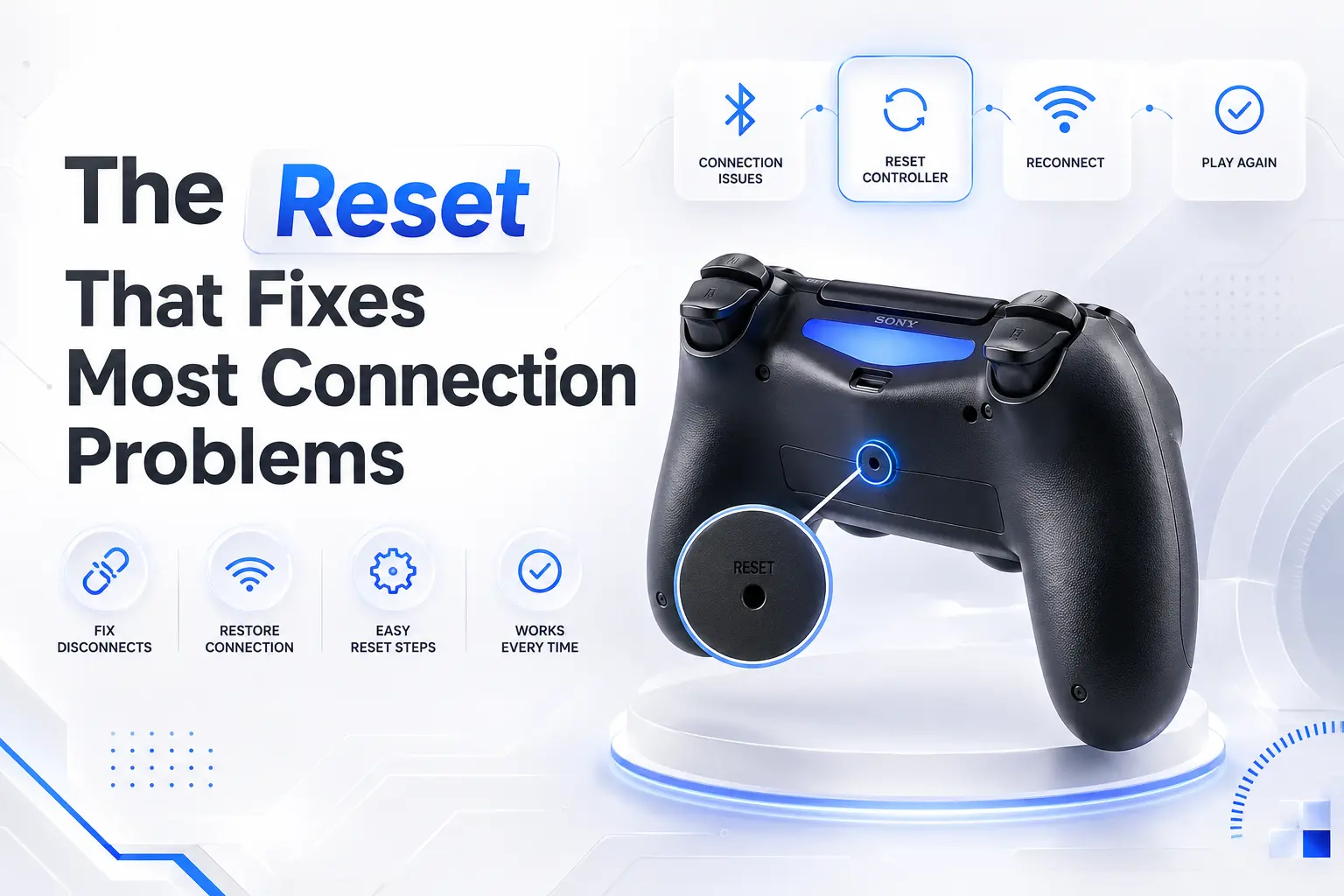
The Reset That Fixes Most Connection Problems
Flip the controller over. Up near the L2 trigger there’s a tiny pinhole genuinely tiny; I’ve watched people run a finger over it and miss it three times. Straighten a paperclip, poke the button inside, and hold for about five seconds. You won’t feel a dramatic click. Just hold and trust it.
Then here’s the step everyone botches: plug the controller into your PS4 with a USB cable and press the PS button. Wired. A reset only “sticks” once you re-pair over the cable. I’ve watched someone reset the pad, immediately jab at Bluetooth again, and declare it dead. It wasn’t. They just skipped the handshake.
Try this right now
Do it even if your controller mostly works. It clears the weird stuff a pad that logs in as player 2, sluggish menus, a light bar stuck on the wrong color. Takes half a minute. I treat it like power-cycling a router.
Why Your Controller Keeps Dropping Out Mid-Game
This is the one that used to make me want to launch a controller through a window. You’re fine for twenty minutes, then it drops. Reconnects. Drops again. Maddening.
The usual suspects, in the order I actually find them:
Distance and interference. The DualShock 4’s Bluetooth is weaker than people think — 15+ feet or a wall in the way and it struggles.
A tired battery. The v1 pads especially sag under load and cut out when the cell ages.
USB 3.0 interference. A sneaky one — 2.4GHz Bluetooth and USB 3.0 ports/hubs genuinely fight each other.
Corrupted pairing, which the reset above clears.
My old apartment kept the PS4 in a media cabinet behind a glass door, and it dropped constantly; moved it to an open shelf and the problem vanished. Quick test: play wired for an hour. If the drops disappear on a cable, you’re chasing Bluetooth, not a dead pad.
When It Won’t Charge the DualShock 4’s Achilles Heel
Here’s my honest, slightly unpopular take: the micro-USB port is the worst thing about this controller. It wears out. The tab inside loosens, the cable wiggles, and eventually it won’t charge unless you hold the cord at one perfect angle like you’re defusing a bomb
Before you assume the port’s dead, swap the cable. Charge-only and frayed micro-USB cords cause a shocking number of “won’t charge or pair” complaints — a proper data cable fixes maybe a third on the spot. If it’s genuinely the port wobbly, charging at only one angle that’s a hardware repair. Solderable if you’re handy (I’ve done dozens), but for most people a repair shop or replacement is the realistic call.
Stick Drift and Dead Buttons
Drift is the other classic failure. Your character wanders, the camera creeps, aim tugs to one side. Pop the rubber cap off, clean around the stick base with a little isopropyl, spray some contact cleaner in there, and it’ll often behave again for a while.
So does cleaning actually fix it? Not for good. The analog module wears out mechanically, and no amount of alcohol rebuilds it. If drift crawls back within weeks, the module needs replacing (about $8 and some soldering) or the pad’s near the end. Mushy or dead face buttons are usually just gunk soda, dust, whatever’s under the cap and the same isopropyl trick brings most of them back.
Where I’d Push Back on the Usual Advice
The internet loves to tell you every PS4 controller problem is a five-minute fix. It isn’t. A worn charging port and long-term stick drift are real hardware failures, and pretending a paperclip cures them just burns your weekend.
Here’s my line in the sand: if a controller has drift that returns within a month AND a flaky charging port, stop nursing it. At that point you’re pouring hours into a $50 part. Buy a new one, or if you love this exact pad, do both repairs at once and be done piecemeal fixes on an old DualShock are a trap.
And skip the cheap third-party pads as replacements. I’ve tested a pile the good ones are rare, the bad ones drift out of the box, and the latency on some is worse than Bluetooth on a real pad. A refurbished official DualShock beats a brand-new knockoff nearly every time.
Your Fix-It Flowchart
Work down this and stop at your first “yes”:
Flashing white, won’t pair? → Reset it, then re-pair wired.
Works wired but not wireless? → Reset, move the console into the open, kill USB 3.0 interference.
Won’t charge? → New data cable first; if still dead, suspect the port.
Stick wandering? → Clean it; if it returns, replace the module or the pad.
Feels laggy? → Go wired, turn on TV Game Mode.
The pre-panic checklist I run every time:
✓ Tried a known-good data cable, not a charge-only one?
✓ Reset the controller and re-paired over USB?
✓ Tested it wired to rule Bluetooth out?Use our controller button test to confirm every input registers cleanly.
✓ Moved the console away from other 2.4GHz gear and USB 3.0 hubs?
✓ Tried it on a second PS4 or a PC to isolate the fault?
Tick all five and it’s still broken? Then it’s the hardware, not you.
Questions I Actually Get Asked
It works on my PC but not my PS4 what’s wrong?
Almost always a pairing problem on the console side. Reset the pad, plug it into the PS4 with a data cable, press PS remember the PS4 pairs over USB the first time.
The light bar flashes white and never connects is it dead?
Usually not. That’s the classic “lost pairing” symptom, and a reset plus a wired re-pair clears the large majority of them.
Can I play while it charges?
Yes wired into the console with a data cable. That’s also the fastest way to tell a Bluetooth problem from a hardware one.
Why does it only disconnect when I’m on the couch?
Distance and line-of-sight. The DualShock 4’s range is modest an open console placement makes a real difference.
Is stick drift covered under warranty?
Within the window, Sony has handled drift claims worth a try before you crack it open. Out of warranty, you’re repairing or replacing.
Still have questions? Visit our Contact Us page, and we’ll be happy to help.