Getting Your Controller Recognized
The tool detects controllers through two connection methods: USB and Bluetooth. Both are supported across desktop and mobile browsers.
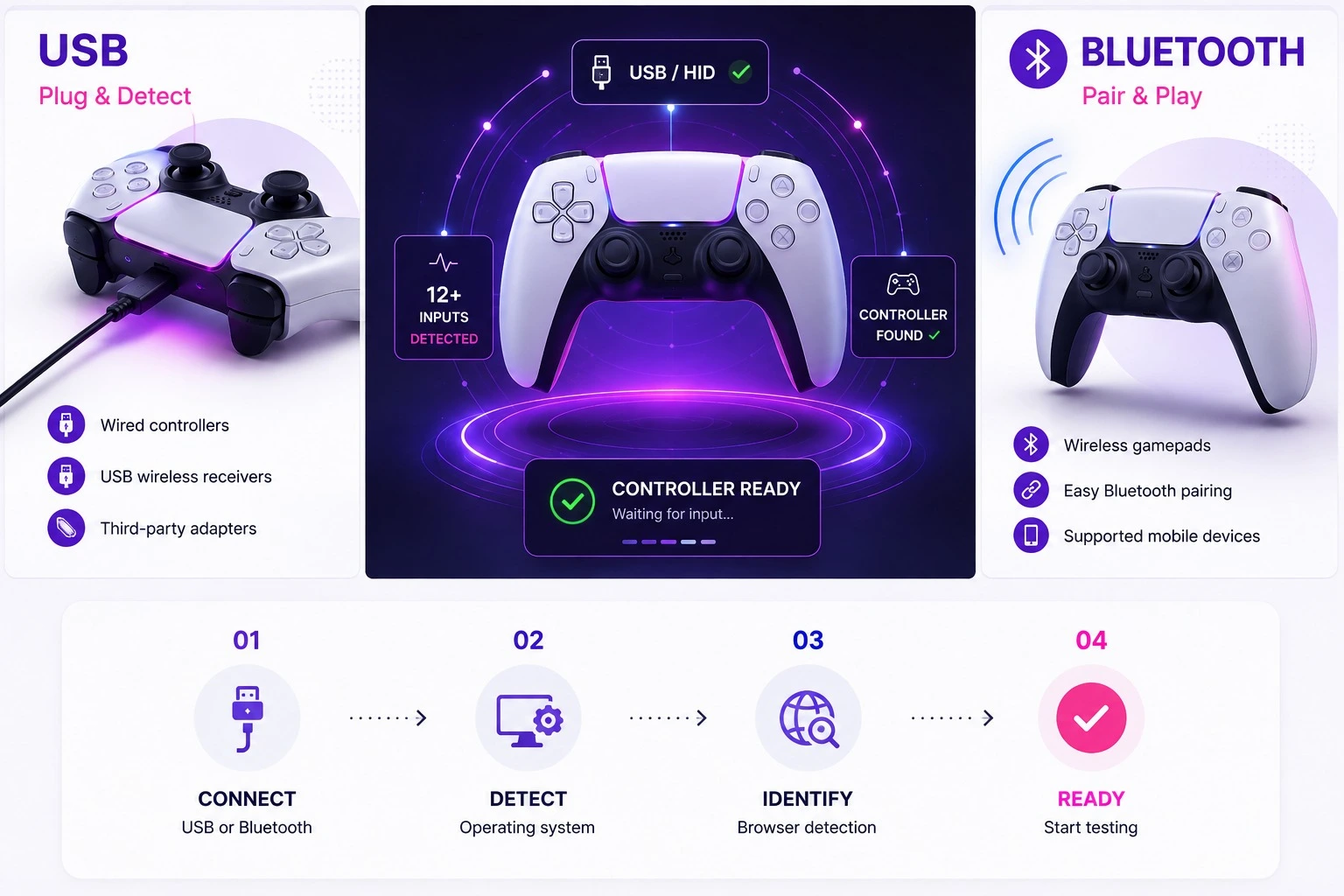
USB
Connect the controller to any open USB port. This method works with wired pads, USB wireless receivers, and most third-party adapters. Detection happens at the operating system level, so any controller the OS recognizes will also be recognized by Gamepad Tester.
Bluetooth
Pair the controller through the device's Bluetooth settings first. Once pairing is confirmed, press any button on the controller to activate the tool's detection.
A Four-Step Walkthrough for Testing Any Controller
Gamepad Tester checks buttons, analog sticks, triggers, the D-pad, rumble motors, and stick drift. The following four steps cover a complete diagnostic pass.
Step 1 — Get the Controller Recognized
Connect the controller over USB or Bluetooth. The Web Gamepad API only activates after a button is pressed, which is a browser security requirement rather than a limitation of the tool. Once a button is pressed, the controller's name and index appear automatically. Up to four controllers can be tested at the same time.
Step 2 — Run Through Every Input
Press each face button, bumper, trigger, stick click, D-pad direction, and system button in turn, checking that the corresponding on-screen indicator activates. An Input History log records every press and release with a timestamp, so earlier results can be reviewed at any point. A built-in 60-second Quick Test provides a fast pass/fail summary for users who don't need a full session.
Step 3 — Check the Analog Sticks for Drift
Move each stick through its full range while watching the live X/Y readout, then release it and observe where the values settle. A properly functioning stick should rest at 0.000 on both axes; a resting value beyond ±0.05 indicates drift. The Drift Detection panel logs resting samples automatically over time, making intermittent drift easier to catch.
Step 4 — Check Vibration, Latency, and Health Score
Cycle through Light, Medium, Heavy, and Pulse vibration presets, or use the intensity slider to test each rumble motor individually. The Latency Test measures average input response time. The Health Score, rated 0–100, combines the results of every test into a single overall rating; a score of 90 or above generally indicates a controller in good working condition. Results can be exported as a text file for later comparison.
Controllers Supported by This Gamepad Tester
Any HID-compliant controller recognized by the operating system will work with Gamepad Tester. The following families receive the most complete feature coverage.

Xbox
Every generation is supported through XInput on Windows and as a standard HID gamepad on macOS and Linux. Button, trigger, and rumble data can be read over USB and Bluetooth where supported by the browser.

PlayStation
DualSense and DualShock controllers provide button mapping, analog trigger readings, and standard gamepad input through compatible browsers and operating systems.
Nintendo
The Switch Pro Controller connects through USB and Bluetooth on supported platforms. Joy-Con pairs can also register as a combined gamepad depending on the operating system and browser.

Third-Party and Generic Pads
USB HID-compliant controllers and paired Bluetooth controllers can be detected without extra setup when exposed through the browser Gamepad API. Compatibility depends on the input data reported by each device.
Who Uses Gamepad Tester?
From competitive gaming to controller repairs, Gamepad Tester helps identify input problems before they become bigger problems.
Competitive & Casual Players
Check stick drift, button response, trigger sensitivity and controller input before gaming.
Secondhand Controller Buyers
Verify every button, analog stick and trigger before buying a used controller.
Repair Technicians
Identify hardware faults and document controller condition before and after repair.
Streamers & Creators
Make sure every controller input is registering correctly before going live.
PC & Multi-Platform Gamers
Check controller compatibility and identify mapping problems across devices.
Developers & QA Testers
Verify button mapping, axis ranges and cross-device controller compatibility.
Hardware Enthusiasts
Monitor controller inputs and quickly detect unusual hardware behavior.
Parents & Casual Users
Test a controller instantly in the browser without installing additional software.
What Sets This Gamepad Tester Apart
Everything you need to inspect controller inputs, identify problems, and verify performance — directly from your browser.
Real-time Visual Feedback
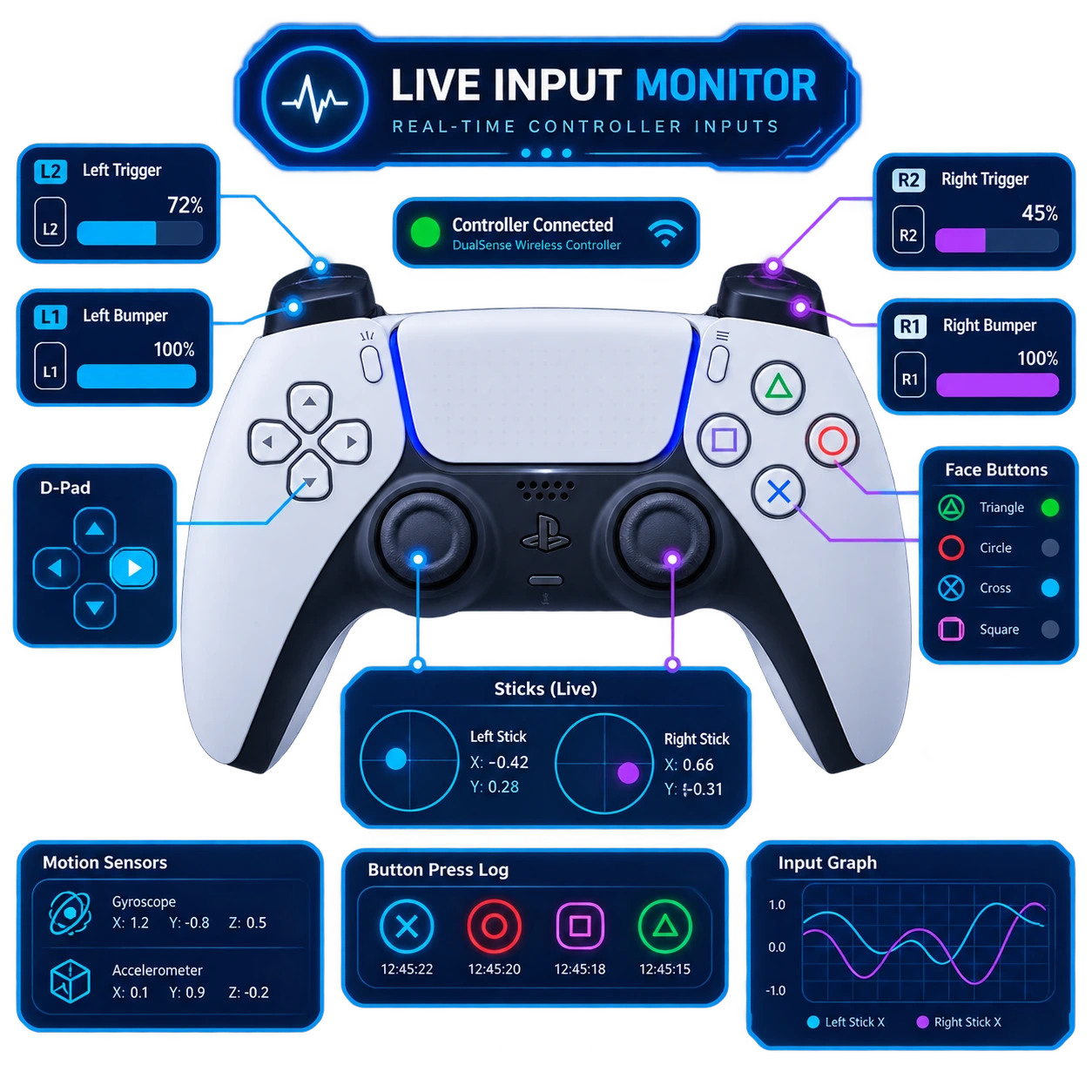
Track analog sticks, center points, buttons and triggers with live visual feedback while testing.
Root-cause Diagnosis
Identify stick drift, inconsistent buttons and calibration problems instead of simply detecting that something is wrong.
Guided Diagnostic Flow
Follow a simple testing process with clear results and practical next steps.
Before & After Repair Checks
Test a controller before repair work and verify the results after cleaning, calibration or replacement.
No Installs or Drivers
Run the diagnostic directly inside your browser without installing additional software.
Cross-platform Compatibility
Test supported controllers across PC, Mac, Linux and compatible mobile browsers.
Under the Hood: How Gamepad Tester Reads Your Controller
Gamepad Tester surfaces the live state of a connected controller: which buttons are pressed, where the sticks are positioned, and how hard a trigger is being pulled.
Establishing the connection.
Controllers connect by USB cable, Bluetooth pairing, or a 2.4GHz wireless dongle. Once connected, the controller sends a handshake signal, and the host device identifies the controller type — Xbox, PlayStation, or generic.
Reading input signals.
Each input type reports a different signal range: digital buttons report 0 (not pressed) or 1 (pressed); analog triggers report a pressure value from 0 to 255; analog sticks report X and Y axis values from -1.0 to +1.0.
Processing on the controller.
A microcontroller inside the controller reads every sensor, converts analog signals into digital data, bundles the results into a controller report, and sends that report to the host device at roughly 1000Hz.
Reading the data.
Gamepad tester reads this data through the platform's available API: DirectInput and XInput on Windows, the HTML5 Gamepad API in the browser, and evdev or SDL on Linux. The software decodes each packet and maps it to the corresponding on-screen element — buttons highlight when pressed, a dot tracks stick position, a bar fills to show trigger pressure, and D-pad arrows light up per direction — all updated live, which makes faulty buttons, dead zones, or drifting sticks immediately visible.
Feature Summary
Calibration
fine-tune stick sensitivity or dead zones
Vibration test
check haptic motors and rumble feedback
Input logging
record every button press and stick movement
Drift detection
automatically flag analog stick drift
Latency test
measure input response time
Health score
overall rating of controller condition
Multi-platform support
works on PC, Mac, Linux, and mobile
Export report
download a detailed test summary
Quick test
60-second rapid button check
Compare mode
test two controllers side by side
Share results
send results to another person
Auto detect
automatically identifies controller type